Cite While You Write (CWYW)
EndNote tab in Word
- EndNote has Cite While You Write (CWYW) functionality that enables you to simultaneously add in-text citations and create bibliography entries when working in Word.
- CWYW commands are on an EndNote tab automatically added to the Word ribbon when you download EndNote.
- Citations and references added into a word document include embedded (hidden) field codes. These codes:
- link to the EndNote library
- also contain a truncated copy of the reference (the Travelling Library)
- A key advantage of using EndNote with Word is that if you discover you have incorrectly referenced a source cited multiple times in a document, correcting it once in your library will automatically correct all instances of the citation linked to it in Word.
Inserting an in-text citation
Open your EndNote Library first, and then switch to your Word document.
- Position the cursor where you want the in-text citation to appear in your word document.
- Select the EndNote tab on the Word ribbon, and then either:
- Select Go to Endnote and highlight the required reference(s) in your EndNote Library, and then click Insert Citation

- Or, in the EndNote tab in Word, select Insert Citation
 search for the reference you want to insert, highlight the correct search result and choose Insert
- Select Go to Endnote and highlight the required reference(s) in your EndNote Library, and then click Insert Citation
- EndNote returns you to Word, the citation appears where your cursor was, and the full reference appears at the end of the document.
Deleting an in-text citation
- In Word click on the citation you want to remove; it should turn grey.
- From the EndNote tab options select Edit and Manage Citations.
- Windows/PC: A pop-up appears with the citation highlighted, click the Edit Reference drop-down and select Remove Citation, then OK.
- Mac: A pop-up appears with the citation highlighted, click the cogwheel drop-down icon and select Remove Citation, then OK.
- Note: If this is the only time the citation occurs, deleting this citation will also remove the reference from the reference list.
Editing in-text citations
If you want to edit in-text citations, you must use the Edit and Manage Citation function in the Word EndNote tab. Otherwise you will find that your changes have disappeared when you next open the document.
- Double-check that the Reference Style selected in the Word EndNote tab is the style you wish to use.
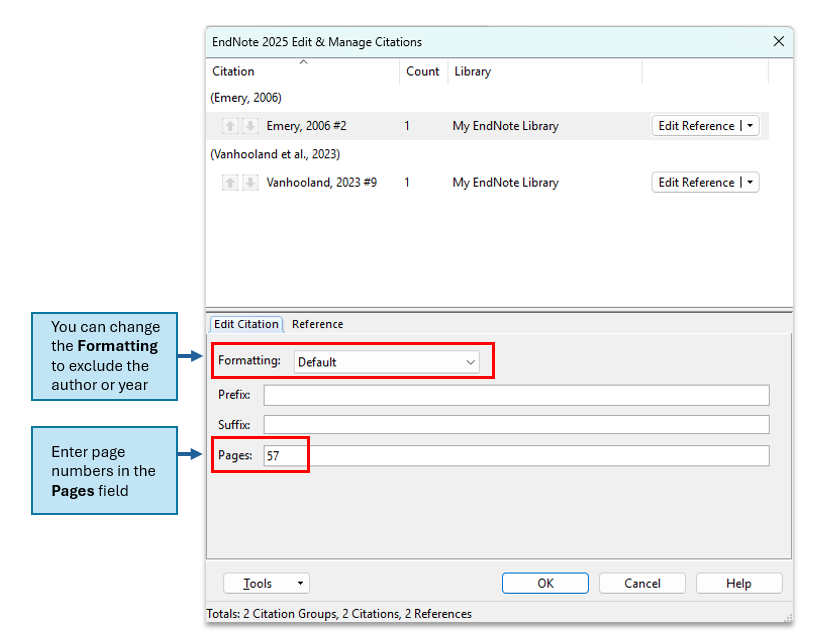
- To change the in-text citations, click Edit and Manage Citation(s).
- Enter page numbers in the Pages field
- Change the way the citation is displayed using the Formatting options
Enter a secondary citation in Word
A secondary citation should be inserted using the Edit & Manage Citation options.
- Position your cursor on where you need to insert a secondary citation on your document.
- Insert the citation of the source you read (the primary source).
- Select the EndNote tab in the Word ribbon, click Edit & Manage Citation(s)
- In the Prefix field, enter the secondary citation, e.g., "Sigmon et al, 2002, as cited in "
- Important: Make sure you include a space at the end of the prefix field.
- Click OK

- The in-text citation should now display like this: (Sigmon et al., 2002, as cited in Smith, 2019)
- Only the reference for the primary citation (e.g., the article by Smith) will be listed in the reference list.
Format & unformatted citations
Citations inserted into Word can be formatted or unformatted.
Formatted citations
- Usually, EndNote in Word has Instant Formatting option turned on. This means that when an unformatted citation is inserted it will immediately be converted to a formatted citation.
- The option to turn instant formatting off or on is in the EndNote tab in Word: toggle between Instant Formatting is On and Instant Formatting is Off
- A formatted citation displays in-text according to the Reference style selected. In APA style, it looks like this:
(Smith, 2017) - A formatted in-text citation generates a matching complete reference in the reference list at the end of the document.
- A formatted in-text citation has hidden field codes inserted from EndNote.
- If you wish to modify how an in-text citation is displayed, the citation MUST be formatted.
Unformatted citations
- Unformatted (temporary) citations are enclosed in curly brackets and include an EndNote library record number. They look like this:
{Smith, 2017 #2} - Unformatted citations do not have a matching reference in the reference list at end of the document.
- The hash number (e.g., #2) is the citation's unique number in the Endnote library. If the record is deleted from the library the number will not be re-used.
- You can convert your document so that all the citations are unformatted:
- (Windows/PC): select Convert Citations and Bibliography > Convert to Unformatted Citations
- (Mac): select Tools > Convert to Unformatted Citations
When to use unformatted citations
Turn off instant formatting in the EndNote tab in Word or choose Convert to Unformatted Citations, when:
- You prefer not to automatically compile the reference list while writing.
- You are using the same Endnote library but on different computers with different versions of Word or EndNote (be sure to use the same EndNote library).
- You are creating separate Word documents for different chapters or sections of your document (be sure to use the same EndNote library).
Edit a reference list
Endnote automatically creates a reference list of all in-text citations at the end of the Word document, arranged according to the selected reference style.
- As with in-text citations, the EndNote field codes mean the list cannot be edited using Word.
- If you need to change a Reference list entry make the changes to the record inside your EndNote library and then use the Update Citations and Bibliography function in the EndNote tab of the Word ribbon.
Change reference list layout
- Check the output style is set correctly in Word.
- (Windows/PC): Click the bottom corner arrow of the Bibliography group, then select the Layout tab in the Configure Bibliography pop-up.
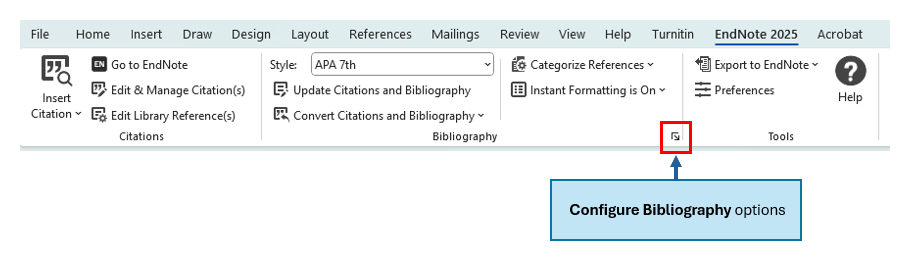
- (Mac): Click Configure Bibliography, then select the Layout tab in the Configure Bibliography pop-up.
- Add a title, change the font size and line spacing as needed.
- Click OK
Create a standalone list
You can also create a standalone reference list that does not have embedded field codes.
- Open your Endnote Library, check the toolbar is showing your preferred reference style.
- Hold down the <Ctrl> key (Windows/PC) or the <Cmd> key (Mac) and select the individual references to include in your list (or Edit > Select All for the entire library or group).
- Choose References > Copy Formatted Reference.
- Open a Word document, then Edit > Paste to create a standalone plain-text reference list.
- This list can be edited as usual in Word.
Convert references to plain text
Sometimes a Word document linked with an EndNote Library is not needed, for example, when you are sending your writing to your lecturer or submitting an article to a journal.
You can create a plain text copy of your document which is not connected to EndNote in any way.
Its is highly recommended that you backup (make a copy) of your Word document BEFORE you do this.
- Windows/PC: Convert Citations and Bibliography > Convert to Plain Text
- Mac: Tools > Convert to Plain Text
- A notification window will pop up, click OK.
- A copy of the document without field codes appears in a new document window.
- Save this document with a new filename. You now have the previous Word version with field codes and the new version with citations and references editable in Word.
Note: The new document is no longer linked to your EndNote library. Any changes to EndNote records will not be updated in this plain text version.
Working with a long document
If you are working on a large document such as a thesis you may prefer to create separate Word documents for each section or chapter. When all chapters are completed, you can merge all chapters into one long document.
Note: Citations in individual documents must all come from the same EndNote library for this process to work.
Step 1. Unformat chapter citations
First make a backup of all documents you intend to merge.
For each document:
- Open the EndNote tab in Word
- Windows/PC: click Convert Citations and Bibliography > Convert to Unformatted Citations
- Mac: click Tools > Convert to Unformatted Citations
- The in-text citations will be reverted to temporary citations (denoted by a hash number and curly brackets), and the reference list will disappear.

Combine chapters into one document
- Paste all individual Word documents (chapters) together in the correct order into a new document, and save this document.
- Insert page breaks for the chapters if necessary.
- Click Update Citations and Bibliography on the EndNote tab.
- The in-text citations will be converted to the selected reference style and a single comprehensive reference list will appear at the end of the merged document.
- If a pop-up appears asking you to choose a style, select your preferred referencing style.
EndNote tab - troubleshooting
EndNote tab doesn't install properly
If you have downloaded EndNote but the EndNote tab is not visible when you open Word, try these options.
Check ribbon customization
- Click File > Options > Customize Ribbon
- If EndNote is unchecked, click the check box.
- Click OK
Check configuration (Windows/PC)
- Browse to C:\Program Files (x86)\EndNote [version]
- Run Configure EndNote.exe
- Ensure Configure EndNote components is selected, click Next
- Select Cite While You Write add-in for Microsoft Office, click Next
- Click Finish
Open Word to check if the EndNote tab is now visible.
Check configuration (Mac)
- Open the EndNote program.
- Select EndNote version number > Customizer
- Select Cite While You Write add-in for Microsoft Word, click Next
- Click Finish
Open Word and see if the EndNote tab is now visible.
The Word EndNote tab has disappeared
Occasionally the EndNote tab initially installs correctly but sometime later disappears.
- Open Word.
- Go to File > Options
- Select Add-ins
- In the Manage dropdown, look in either COM Add-Ins, Word Add-Ins, or Disabled Add-Ins, and Go
- Look for EndNote Cite While You Write appears in those locations, select it and enable it as appropriate.
- Highlight and click OK
- CWYW should now appear under Active Applications Add-Ins and on your Word ribbon.

Mac CWYW loading issues
Mac users may get the following error message that the EndNote CWYW add-in cannot be loaded into Microsoft Word:

Cause:
Apple’s M1 chip (used in newer models of Macbook Air, Macbook Pro and Mac Mini) and some apps (including Word) need updates as a result.
Work-around
Set Word to open with Rosetta. Follow these steps:
- Quit both EndNote and Word.
- Open Finder
- Go to the Applications folder.
- Select (highlight) Word (do NOT open it, just select it).
- Go to the File menu at the top of the screen and select Get Info
- Under General, check the option for Open using Rosetta

- Open EndNote and Microsoft Word and verify that you can now insert a reference from EndNote into Word.